Photo Enhancer vs Upscaler: Which One Does Your Photo Actually Need?
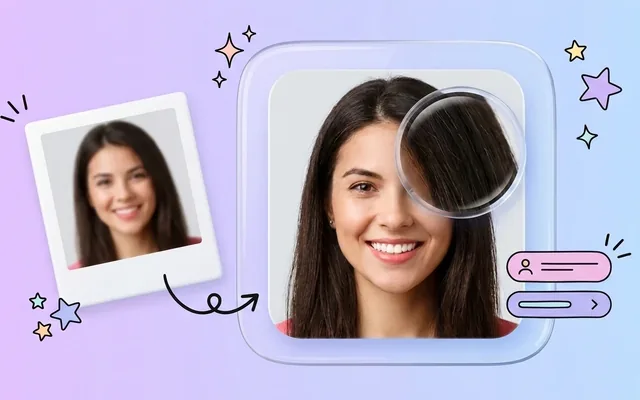
They sound like the same thing and they solve different problems. How to tell which one your photo needs, why the order matters, and what happens when you get it backwards.
 EnhanceIT
PRO
EnhanceIT
PRO
In iPhone 12, apple introduced an auto-enhance feature that increases your image resolution. But in some cases, it over-processes and makes your image AI-generated or unrealistic.
So it becomes awkward for all, and they want to get rid of it, and it is possible to just follow the guide.
There are simple ways to disable photo enhancers on your iPhone:
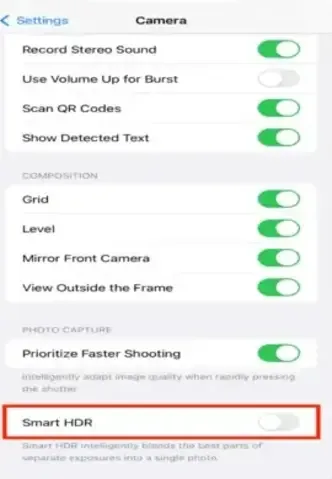
HDR stands for High Dynamic Range. It adjusts your images’ lights and exposure levels, but sometimes it becomes unrealistic. In iPhone 13 and later, they use HDR auto, but in iPhone 12 and earlier, you have to turn off or adjust by yourself. If you have an iPhone 12 or earlier, you can follow the instructions to disable it.
Follow the steps to disable HDR:
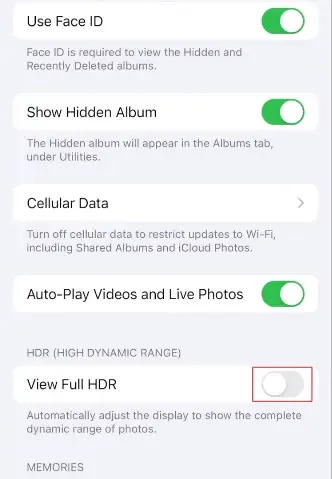
It increases the brightness for some photos suddenly, and if you don’t like it and want to disable it, follow the steps:
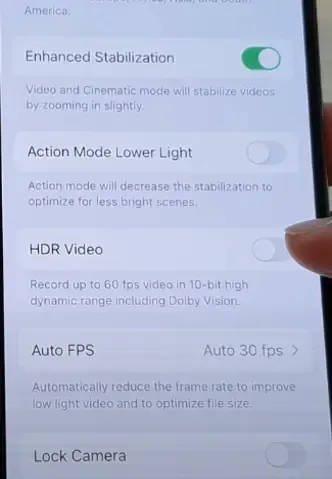
The iPhone 12,13,14,15 series provides the feature of enhancing your video with true life colors. The results might not be satisfying and look over enhanced to disable it follow the steps:
Click photos in Raw mode to decrease processing and later enhance the image by yourself.
Also Read: Best Free Online Photo Enhancer: Clear Blurry Images Online
This feature is available on iPhone Pro versions like iPhone 12 Pro, 14 Pro, etc. They offer you several qualities like 12MP and 48MP.To click pictures in Raw mode follow the steps:
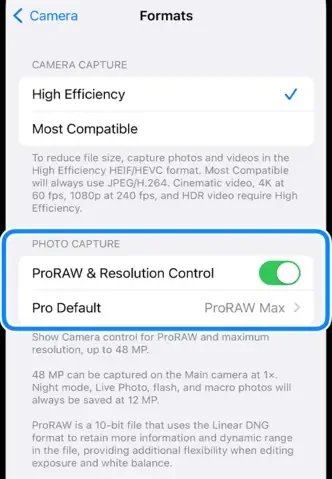
Note: It can reduce your storage as one image size will be approximately 20+ MBs.
When you enable this, your camera focus captures the exact frame rather than the best frame, so enabling this can be helpful while stopping auto-enhancing to do so; just repeat after me:
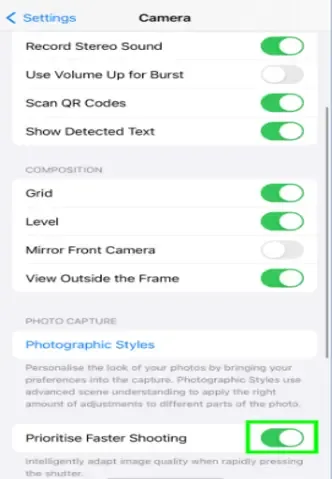
*Enable Prioritize Faster shooting*
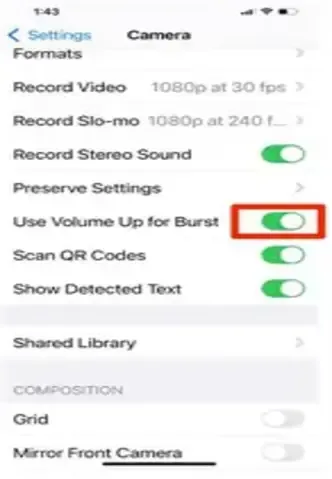
In Burst mode, your camera focuses on clicking the exact frame, so it decreases the processing so you can adjust images by yourself.
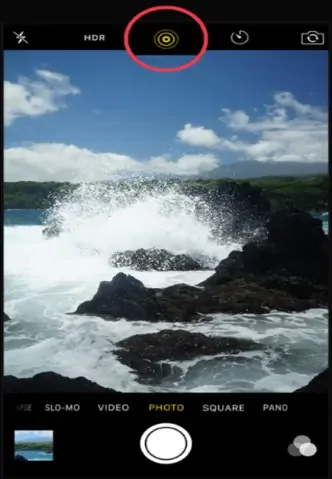
Another way to bypass photo enhancing is to click pictures in live mode and to enable it, repeat after me:
In the dim light, the iPhone switches to Night mode automatically, and as a result, the pictures are unreal. To off it repeat after me:
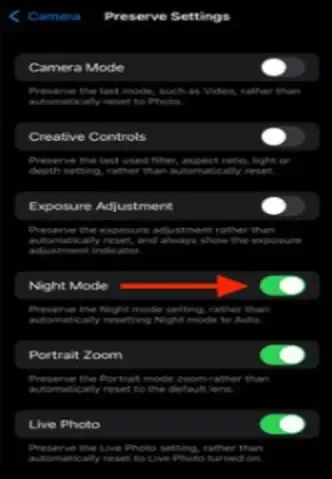
In the iPhone 12, apple introduced the auto enhance features that auto-enhance your image quality, adjust color and light too, and make it quilted, but sometimes it over-processes the image and makes it unreal.
When you click an image, the iPhone algorithms analyze the picture and adjust the needed things like colors, light, etc.
Yes, it’s possible to disable the iPhone auto enhancement. There are some ways, and by following, you can improve Photo enhancement.
Yes, you can use the EnhanceIT PRO photo enhancer to enhance your images accurately.
To disable Lens Correction on iPhone, head to Settings > Camera > Disable the Lens Correction toggle.
They sound like the same thing and they solve different problems. How to tell which one your photo needs, why the order matters, and what happens when you get it backwards.
Remini popularised AI photo restoration and then put most of it behind a subscription. Seven alternatives compared on what they actually do well, what they charge, and where each one falls down.
Resizing and upscaling are not the same thing. What actually happens when you enlarge a photo, how far you can push it honestly, and where AI reconstruction stops being recovery and starts being invention.
What 'HD' actually means in pixels, how far a low-resolution photo can honestly be pushed, and the free route from a small blurry picture to something you can print or publish.