
AI Face Enhancer
Upload a photo and the AI rebuilds the face: eyes, skin texture, hairline and the fine detail that compression and low light throw away. Built on a facial-prior model, so it reconstructs a face as a face rather than sharpening it like a wall.
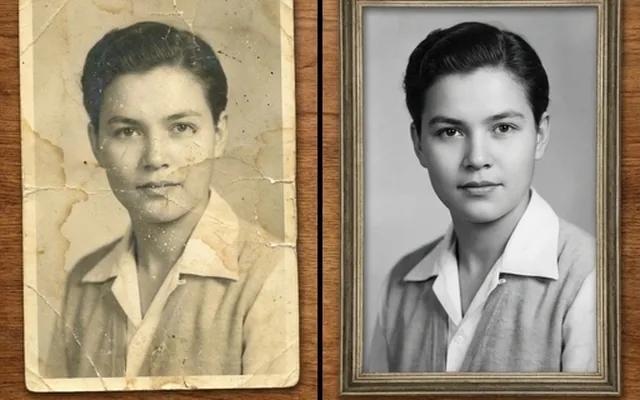
Faces are the hardest thing to recover in a photograph and the thing people most want back. A general sharpening pass raises local contrast everywhere, which turns a soft eye into a dark blob with a bright ring around it and skin into something plasticky. The result reads as damaged rather than repaired.
A facial-prior model works differently. It has seen millions of faces and knows what an eye, a nostril, an eyelash and a hairline are supposed to look like at any scale, so it rebuilds those structures instead of just increasing contrast at their edges. That is why the recovered face still looks like a face — and, crucially, still looks like the same person.
Free to try, no card, and the result appears in about fifteen seconds.
How it works
-
1
Upload the photo
JPEG, PNG, WebP or HEIC, up to 10MB. Crop in first if the face is small in the frame — the model works from the pixels it is given.
-
2
The face is rebuilt
Eyes, skin texture, hair and the edges of features are reconstructed from a model trained specifically on faces. The background is enhanced too, but the face is where the work goes.
-
3
Check and download
Compare against the original at full size before you use it. Faces are exactly where you want to verify, because a plausible wrong detail is worse than a blurred right one.
What people use it for
Old family photographs
Scanned prints where the faces have gone soft. The strongest use there is — the original detail is already lost, so any recovery is a gain.
Low-light phone photos
Indoor and evening shots come back grainy, and noise reduction alone smooths the face into wax. This rebuilds the texture instead of removing it.
Group and event photos
A face that is small in the frame loses everything. Crop to the person first, enhance, and you get a usable portrait out of a wide shot.
Video stills
A frame grabbed from video is soft by construction. Faces are the first thing to go and the first thing this brings back.
Profile pictures
An old avatar that looked fine at 200 pixels and falls apart on a modern display.
Documents and IDs
A passport or ID photograph that has been photocopied or photographed. Verify against the original before relying on it for anything official.
Getting the best result
- Crop to the face before enhancing. A face occupying 5% of a frame gives the model 5% of the pixels to work from.
- One face at a time for portraits that matter. Group shots work, but attention is divided and each face gets less.
- Restore before enhancing if the photo is physically damaged — colouring or sharpening a tear just gives you a sharp tear.
- Always compare at 100% against the original. This is the one category where the model is reconstructing something identifiable.
- Do not use an enhanced face as evidence of identity. It is a reconstruction informed by your photograph, not a higher-resolution capture of it.
You might also like
What reconstruction means, honestly
This is not a magnifying glass. The model is generating a plausible face consistent with the pixels it was given, and on a badly degraded photograph "plausible" and "correct" can come apart. For a family photograph that is fine and often moving. For anything where identity has consequences, treat the output as an interpretation and keep the original.
Frequently asked questions
Will it still look like the same person?
In almost every case, yes — the model is trained specifically on faces and works from the structure already in the photo. The exception is a face so degraded that a human could not identify it either; there the model is reconstructing rather than recovering, and you should compare against another photograph of the same person before relying on it.
What kind of photo does it work best on?
A face that occupies a reasonable share of the frame. A group shot where each face is fifty pixels across has very little for the model to work from — crop in first if you can. Blur, noise and heavy compression all come back well; a face that is fully out of focus does not.
Does it work on old scanned photographs?
Yes, and it is one of the strongest uses. Scan at 600 DPI or higher and run the photo restorer first if there is physical damage, then the face enhancer. In that order the model works on a clean image rather than enlarging the damage with it.
Is it free?
Yes, on the free tier. New accounts get 3 credits and face enhancement costs 1, so you can try it without paying. Free results carry a watermark; a paid plan removes it.
How is this different from the photo enhancer?
The photo enhancer improves the whole image — noise, compression, colour and edges together. This targets faces specifically, using a model trained on facial structure. On a portrait it produces a noticeably better face; on a landscape it has nothing to work on.