How to Turn Your Selfie into an Anime Character: A Complete Guide
How to Turn Your Selfie into an Anime Character: A Complete Guide Turning a standard selfie into a high-quality anime illustration is easier today than…
 EnhanceIT
PRO
EnhanceIT
PRO
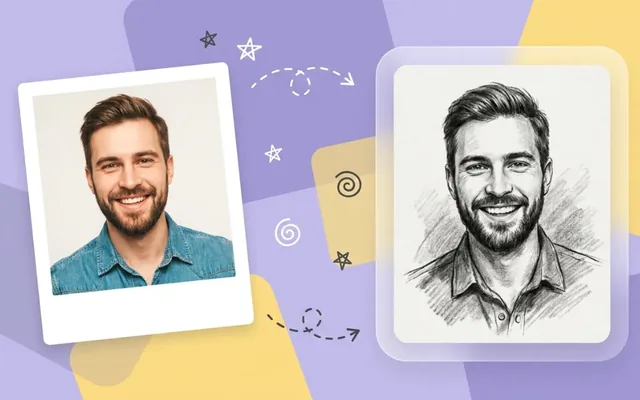
The aesthetic appeal of a handcrafted pencil sketch never goes out of style. Whether you are creating a thoughtful portrait gift, designing an artistic social media feed, or preparing architectural visualizations, a well-executed sketch brings a timeless, textured quality to any image.
Traditionally, converting a photograph into a believable sketch required expensive desktop software, a graphics tablet, and hours of painstaking manual tracing and shading. While basic filters have existed for years, they usually just desaturate the image and apply a harsh edge-detection algorithm, resulting in a flat, artificial look that no one would mistake for real graphite.
In 2026, artificial intelligence has fundamentally changed this process. Modern AI tools analyze the lighting, texture, and depth of your photograph to generate incredibly realistic pencil strokes, cross-hatching, and shading. In this guide, we will walk you through exactly how to convert your photos into authentic sketches using the latest browser-based technology.
To understand why modern AI tools are necessary, it is helpful to look at how old photo editing apps handled the “sketch” effect.
Older software relied on mathematical edge detection. It would scan your photo for areas of high contrast, draw a dark line along those boundaries, and turn everything else white. This approach has three major flaws:
Generative AI solves these problems. Instead of mathematically tracing edges, a generative model “understands” what a face, a building, or a landscape looks like, and essentially redraws it from scratch using a massive library of trained sketch data.
For this tutorial, we will use the AI Photo to Sketch converter from EnhanceIT PRO.
We recommend this specific tool because it specializes in authentic media simulation. Rather than applying a single generic filter, it allows you to choose between graphite, charcoal, and ink pen aesthetics. It is also completely browser-based, requiring no downloads, and it does not overlay watermarks on your final export.
If you are looking for broader image generation tools that create art from text rather than photos, you can check out our recent breakdown of the best free AI image generators in 2026. For this guide, however, we are focusing strictly on converting existing photographs.
AI is powerful, but it performs best when given a strong starting point. To guarantee the most realistic sketch, you need to provide a high-quality reference photo. Follow these three rules when choosing your image:
High Contrast is Key: A photo with strong directional lighting works best. If your face is brightly lit on one side and shadowed on the other, the AI has a clear roadmap for where to apply dense pencil shading and where to leave the paper blank. Flat, even lighting often results in a washed-out sketch.
Mind the Background: If you are sketching a portrait, a cluttered background can distract from the subject. The AI will try to sketch every bookshelf, plant, or pedestrian behind you. If your background is too busy, consider using an AI Background Remover to isolate your subject before converting it.
High Resolution: Low-resolution images force the AI to guess where details should be, which can lead to muddy pencil strokes. Upload the highest quality version of the photo you have available.
Once you have uploaded your photo into the converter, you will need to choose your stylistic settings. The AI Photo to Sketch tool offers several different media types:
Graphite Pencil: This is the standard setting. It simulates the look of an HB or 2B pencil, providing clean lines, smooth gradients, and a highly realistic, professional portrait look. It is the safest choice for human faces.
Charcoal: Charcoal styling is much darker, messier, and more dramatic. It uses broad, smudged strokes and deep blacks. This setting is excellent for architectural shots, moody landscapes, or highly dramatic portraits, but it can obscure fine facial details.
Ink and Wash: This setting mimics a fountain pen outline combined with a light watercolor wash. It is perfect for urban sketching or travel photography.
Select the medium that best fits the mood of your photo.
Click the generation button and allow the AI a few seconds to process the image. Because the tool uses generative technology, it creates a unique arrangement of pencil strokes every time.
If you like the overall look but feel the shading is slightly too aggressive in one area, do not hesitate to run the generation a second time. The AI will provide a fresh interpretation of the photo.
Once you are satisfied with the sketch, download the high-resolution file. If you plan to print the artwork on canvas or large paper, you may want to run the final sketch through an AI Image Upscaler. This ensures the simulated paper texture and fine pencil lines remain crisp even when blown up to poster size.
Now that you have your digital sketch, what should you do with it?
Many users incorporate these sketches into custom greeting cards or wedding invitations, offering a handmade aesthetic without the massive cost of commissioning an illustrator.
Architects and interior designers frequently use sketch conversion to soften 3D renders, making them look more conceptual and less rigid for client presentations.
Finally, they make excellent, thoughtful gifts when printed on high-quality matte paper and framed.
Converting a photo to a sketch no longer means settling for cheap, flat edge-detection filters. By starting with a high-contrast photograph and using a specialized generative tool like EnhanceIT PRO, you can produce stunning, realistic pencil art in a matter of seconds. The technology handles the shading, line weight, and texture, allowing you to focus entirely on the creative direction of your project.
How to Turn Your Selfie into an Anime Character: A Complete Guide Turning a standard selfie into a high-quality anime illustration is easier today than…
Top 10 Best AI Photo to Anime Converters in 2026 (Free & Paid) The internet is flooded with AI art generators, but if you want…
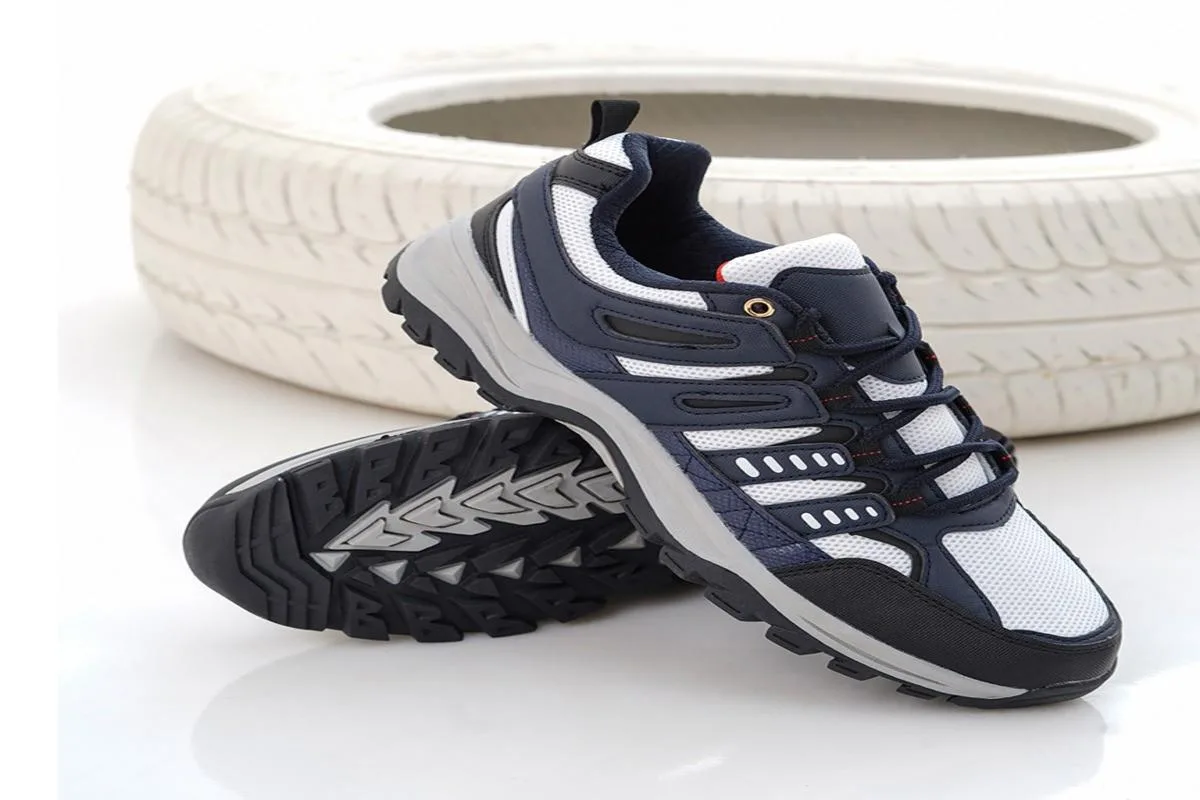
📚 Complete Guide: AI Photos for Business: The 2026 Guide Are you struggling to find a comfortable men’s sneaker brand in Pakistan? Then you’re at…
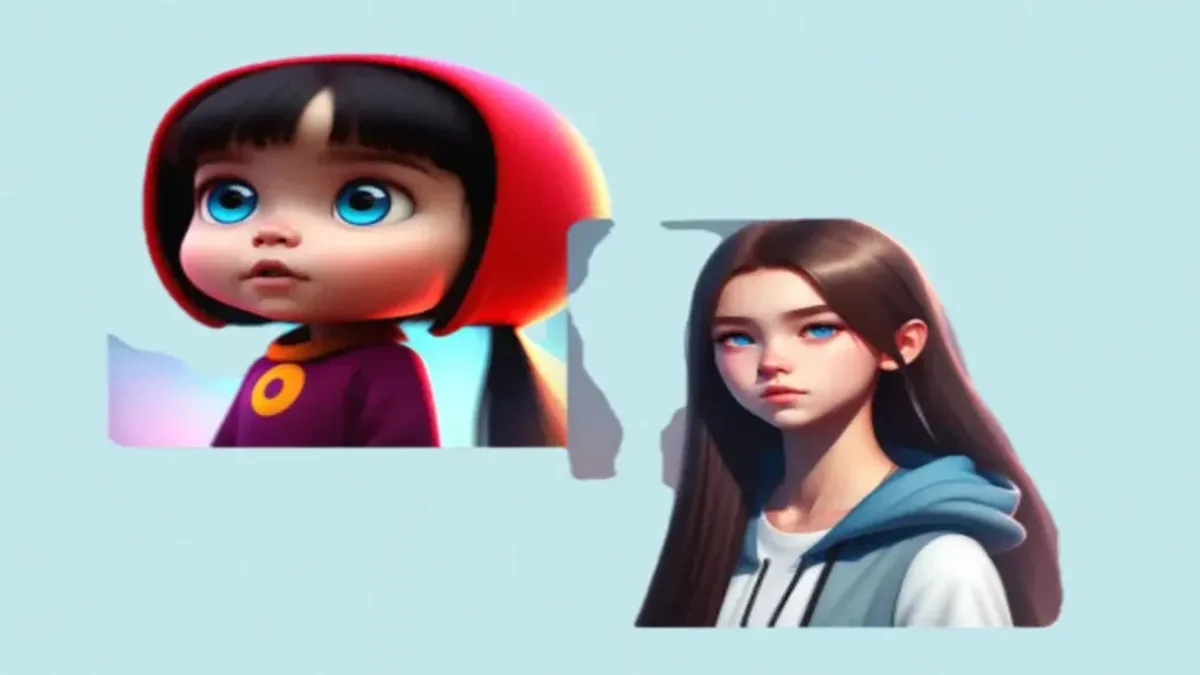
Cartoon photos are the best way to share images for fun purposes, but software like Photoshop requires lots of complex editing, which may not be…