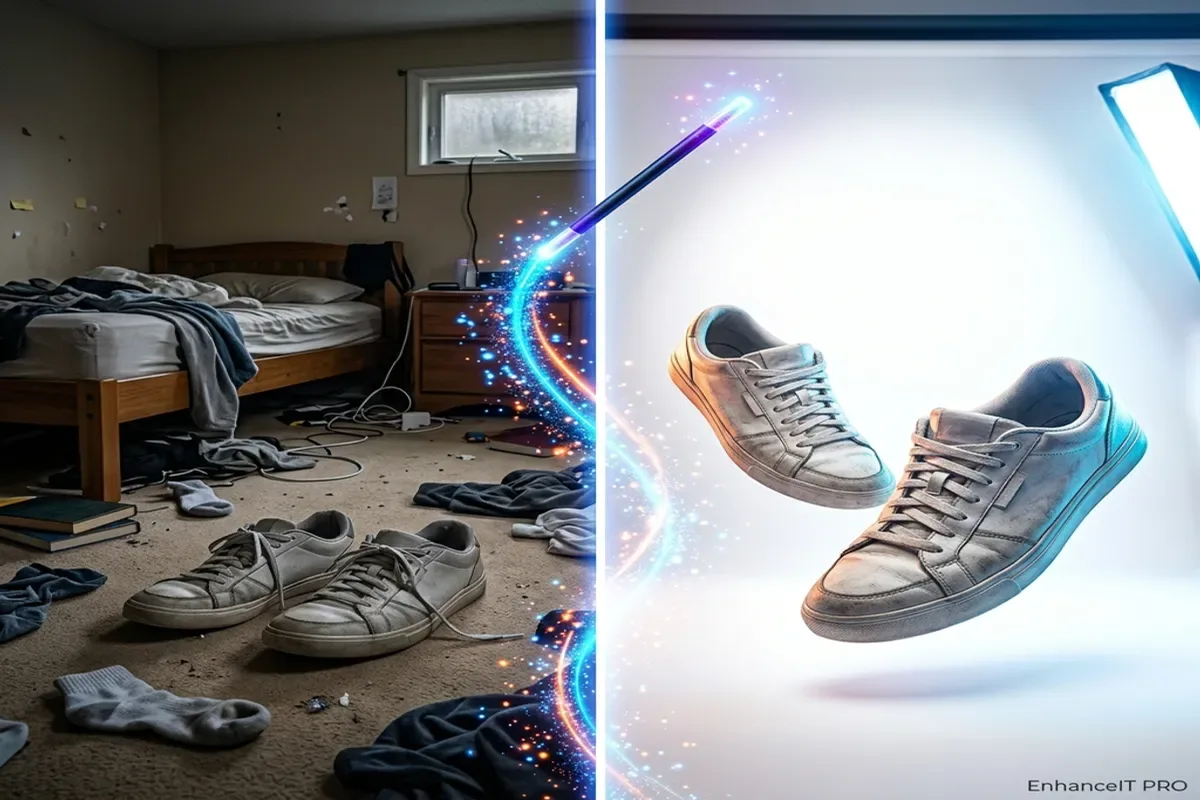
In the competitive world of YouTube, your thumbnail is your first impression. A blurry, pixelated, or dim thumbnail can kill your Click-Through Rate (CTR) before a viewer even reads your title.
EnhanceIT PRO is a powerful, free AI tool that can instantly upgrade your thumbnail quality—sharpening text, restoring faces, and upscaling low-res images to 8K resolution.
Here is how to use it effectively for your channel.
Why Use EnhanceIT PRO for Thumbnails?
Try it yourself! Use our free AI Image Enhancer tool – no signup required.
Before we get to the “how-to,” here is why this specific tool is useful for YouTubers:
Crisp Text Overlays: The “Text Clarity Enhancer” ensures your big bold titles are readable on small mobile screens.
Face Restoration: Reaction shots are key to high CTR. If your face is slightly out of focus, the “Face Restore” feature uses AI to reconstruct facial details.
8K Upscaling: YouTube displays thumbnails on everything from phones to 4K TVs. Upscaling ensures your image never looks pixelated on large screens.
No Watermarks: Unlike many free tools, EnhanceIT PRO allows you to download clean images ready for upload.
Step-by-Step Guide
Step 1: Visit the Website
Go to https://enhanceit.pro. You do not need to download any software; the tool runs entirely in your browser.
Step 2: Upload Your Thumbnail
On the homepage, you will see an “Upload Your Image” box.
Drag and drop your file into the box or click to browse your computer.
Supported Formats: JPG, PNG, WEBP.
File Limit: Ensure your file is under 5MB.
Step 3: Select Your Enhancement Features
Once uploaded, the AI will analyze your image. You can often choose specific enhancement models depending on your thumbnail type:
For Vlogs/Reaction Videos: Ensure Face Restore is active to make facial expressions pop.
For Gaming/Anime: Select the Anime Enhancer model if you are using illustrated characters.
For Tutorials: If your thumbnail has a lot of text or screenshots, the Text Clarity and Image Sharpener features will prevent blur.
You can also select your upscale factor (2x, 4x, or even 8K) to ensure the resolution is high enough for YouTube (minimum recommendation is 1280×720, but higher is often better for source quality).
Step 4: Click “Enhance”
Hit the Enhance button. The process is usually fast, taking only a few seconds depending on your internet speed and image complexity.
Step 5: Download
Once processing is complete, preview the difference. If you are satisfied, click Download to save the clean, high-resolution image to your device.
Pro Tips for YouTubers
Fix “Zoomed In” Blurs: If you cropped a tiny part of a larger photo to use as your thumbnail background, it will likely be pixelated. Use EnhanceIT PRO’s 4x Upscale to make that cropped section look like it was shot with a high-quality camera.
Clean Up Backgrounds: If your original photo is cluttered, check if the Object Remover tool is available to wipe out distractions behind you, keeping the focus on the subject.
Don’t Over-Sharpen: While sharp is good, too much sharpness can look “crunchy.” Preview your image at 100% zoom to ensure it looks natural.