Top 10 Virtual Hairstyle Try-On Apps in 2026 (Pricing & Features)
Top 10 Virtual Hairstyle Try-On Apps in 2026 (Pricing & Features) Changing your hair is a major commitment. For decades, the only way to know…
 EnhanceIT
PRO
EnhanceIT
PRO
Passport-size images are best for documents but the paid services are very costly, and everyone can’t afford them. For those, we have a solution for how you can make passport-size images using your favourite software Photoshop.
The guide will include some simple steps for making passport-size images with Photoshop and the best alternative.
Here is a quick list of steps:
1. Open your photo in Photoshop
Open Photoshop on your pc and import the image you want to make passport size.
2. Crop the Image to Passport Size
The passport image dimension is 2×2 inches (51×51 mm). You can use the Photoshop crop tool to set these dimensions. Here are the steps on how you can do that:
3. Adjust the Colors and lighting (optional)
If your picture looks dull, you can colorize it using Photoshop and improve its overall quality. Here are the steps on how you can do that:
4. Resize the image
For your information, Passport-size photos have a particular resolution which is 300DPI (dot per inch) and to meet that resolution, we have to resize it. Here are the steps:
5. Save the Final Result
Here are the steps to save the image in the storage:
We know everyone can’t afford to install Photoshop onto their PC. So for those we come up with an alternative online AI solution in which you can edit your image online with the help of AI. We have tested the tool and it works perfectly.
EnhanceIT PRO owns an online AI Passport size photo maker. You can use it as an alternative to Photoshop as it makes you free from the complex editing interface. EnhanceIT PRO Passport size photo maker has an easy-to-navigate interface where you can make your passport-size images in seconds with the help of AI tools.
Also Read: The Best Latest Photo Enhancing Software for PC and Mac
In EnhanceIT PRO, you can upload your images by selecting the image or by drag and drop feature. EnhanceIT PRO’s passport-making process is quite simple and easy, it just includes 3 steps of exporting and here are the steps:
After that, your image will be in your storage in passport size. The image will also be edited without doing any extra tasks.
Considering your country’s passport image guidelines before making a passport image is important. You can check these details on the government’s official website or contact a professional photographer.
In this article, we have gone through how to make passport-size images with and without Photoshop. We describe simple ways to make passport-size images—moreover, an alternative AI solution helps you make passport-size images online for free. If you don’t want to face complex editing, try using the online tool EnhanceIT PRO.
How do I resize a photo to passport size in Photoshop?
To resize a photo in Photoshop, you can follow these steps:
How do I convert a photo to passport size?
To convert your image into a passport-size photo, you can use EnhanceIT PRO’s passport-size photo maker.
How do I make a passport-size photo in Photoshop for free?
Here are the steps to do this:
What version of Photoshop do I need to create passport photos?
Version doesn’t matter so You can use any version of Photoshop.
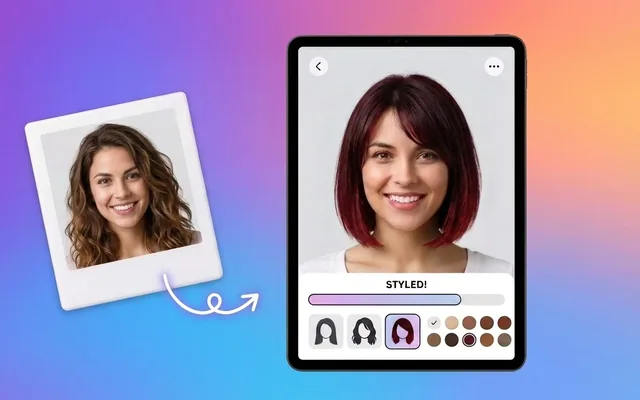
Top 10 Virtual Hairstyle Try-On Apps in 2026 (Pricing & Features) Changing your hair is a major commitment. For decades, the only way to know…
Top 5 Free AI Face Swap Tools for Photos and Videos in 2026 Face swapping technology has moved far beyond simple mobile filters. In 2026,…
Trying to find a new haircut is incredibly stressful. If you choose a style that does not match your face shape, you are stuck with…
Getting a new haircut is a risk. You sit in the barber chair, show a reference photo, and hope it works with your face shape….