
Modern software makes image improvement fast and simple. We compare dedicated web-based tools with Adobe’s complex creative editor to help you choose the best workflow.
Understanding dedicated AI enhancers
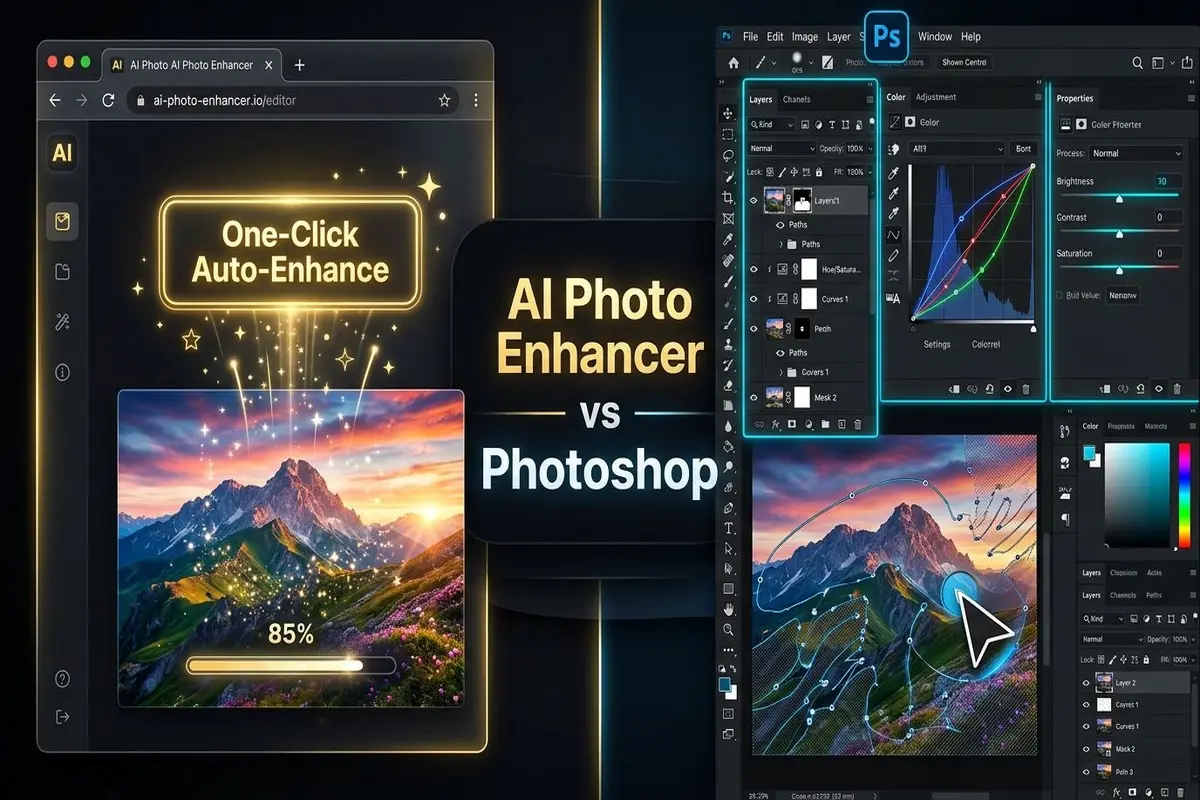
A dedicated AI enhancer (which you can explore in our AI Tools Directory) focuses on doing one thing exceptionally well. It repairs specific technical issues in your photos. These web-based tools use neural networks trained on millions of images to automatically detect blur, noise, and low resolution. Instead of requiring complex manual tools, they offer a one-click solution for everyday users.
You upload an image, select your desired correction, and let the algorithm do the work. The speed is impressive. It takes only a few seconds to restore details that would otherwise take hours of manual cloning or brushing. Instead of standard manual cloning, specialized cloud-based tools allow you to quickly improve details. If you are working with graphics, learning how to increase PNG resolution without losing quality is a key step that saves you hours of manual editing.
Common tasks that specialized AI tools excel at include:
- Upscaling low-resolution images to crisp 4K or 8K files with our AI Image Upscaler.
- Removing grain and low-light noise without erasing fine textures.
- Sharpening motion blur and out-of-focus camera shots.
- Removing complex watermarks or background distractions instantly.
These specialized web applications require zero installation. They run directly in your web browser and handle heavy processing on cloud servers. This means you do not need an expensive graphics card to get professional-grade output.
The power of creative editing in Photoshop
For decades, Adobe Photoshop has been the industry standard for professional image editing. It offers unmatched control. Photoshop is not just a repair tool. It is a full creative sandbox. Recently, Adobe integrated its own generative AI model, Adobe Firefly, directly into the interface. This brings intelligent features like Generative Fill and Neural Filters to your workspace.
The core advantage of Photoshop lies in its non-destructive workflow. Every AI edit can be placed on a separate layer. This means you can mask out unwanted areas, adjust opacity, and combine AI generation with traditional tools. You retain total creative direction.
Photoshop excels at complex, creative manipulations:
- Adding or replacing objects in a photo using text prompts.
- Retouching portraits with precise control over skin textures, expressions, and hair.
- Blending multiple photos together to create surreal composites.
- Applying advanced color adjustments and matching tones across different layers.
However, this power comes with a price. Photoshop has a steep learning curve. It requires a paid monthly subscription and significant local system resources to run smoothly. However, if you are looking to save on a paid subscription or find desktop applications too heavy, there are excellent ways to learn how to edit a photo without using Photoshop for your creative needs.
Comparing speed and accessibility
When you need to clean up a large folder of images, processing speed and web app accessibility become critical. This is where dedicated web tools shine. Opening a professional program to fix a single blurry photo is like using a sledgehammer to crack a nut.
Dedicated online tools operate instantly. You do not need to log in to a massive desktop application, create a canvas, import the file, and configure multiple adjustment layers. Instead, you drag, drop, and save the result. We have previously explored how new browser-based generators measure up in our guide on Nano Banana vs Photoshop, highlighting the massive shift towards browser-based editing.
Let us compare the core operational differences between web-based tools and desktop software:
| Comparison Metric | Dedicated Web AI Tool | Photoshop AI |
|---|---|---|
| Learning Curve | None (one-click) | High (requires training) |
| System Requirements | Any browser (cloud processing) | Fast processor, dedicated GPU, high RAM |
| Startup Time | Under 3 seconds | 15–30 seconds |
| Pricing Model | Free tier available | Monthly subscription |
| Main Focus | Rapid repair and enhancement | Creative control and manipulation |
By moving the heavy computing workload to remote cloud servers, web enhancers democratize high-fidelity photo editing. Anyone with a basic smartphone or an older laptop can achieve clean, professional-looking images in seconds.
Finding the best workflow for your needs
Choosing between these tools depends entirely on your daily goals. You do not need to limit yourself to just one application. Many professionals adopt a best workflow strategy that combines both.
For instance, a hybrid approach works beautifully for high-stakes projects. You can use a specialized web-based AI tool like our AI Image Sharpener to perform the initial deblurring and noise reduction. Once you have a clean base image, you import it into Photoshop for advanced layering, color grading, or complex composite adjustments. For business owners and marketers, having perfect imagery is not just about aesthetics. Understanding why high-quality images are important to your business helps you see how critical one-click upscalers are for increasing conversion rates.
If you are trying to decide which route is right for you, consider these typical scenarios:
- Choose a dedicated web AI tool if you are an e-commerce seller, marketer, blogger, or real estate agent who needs clean, sharp, high-resolution photos quickly without learning complex software.
- Choose Photoshop if you are a professional graphic designer, digital artist, or commercial photographer who requires precise pixel control, manual brushing, and multi-layered compositions.
For the vast majority of web users, dedicated AI tools provide everything required. They save time, require no monthly subscription, and deliver spectacular results on any device. Start by trying our free web-based AI Image Upscaler and other specialized editors today to see the difference for yourself.