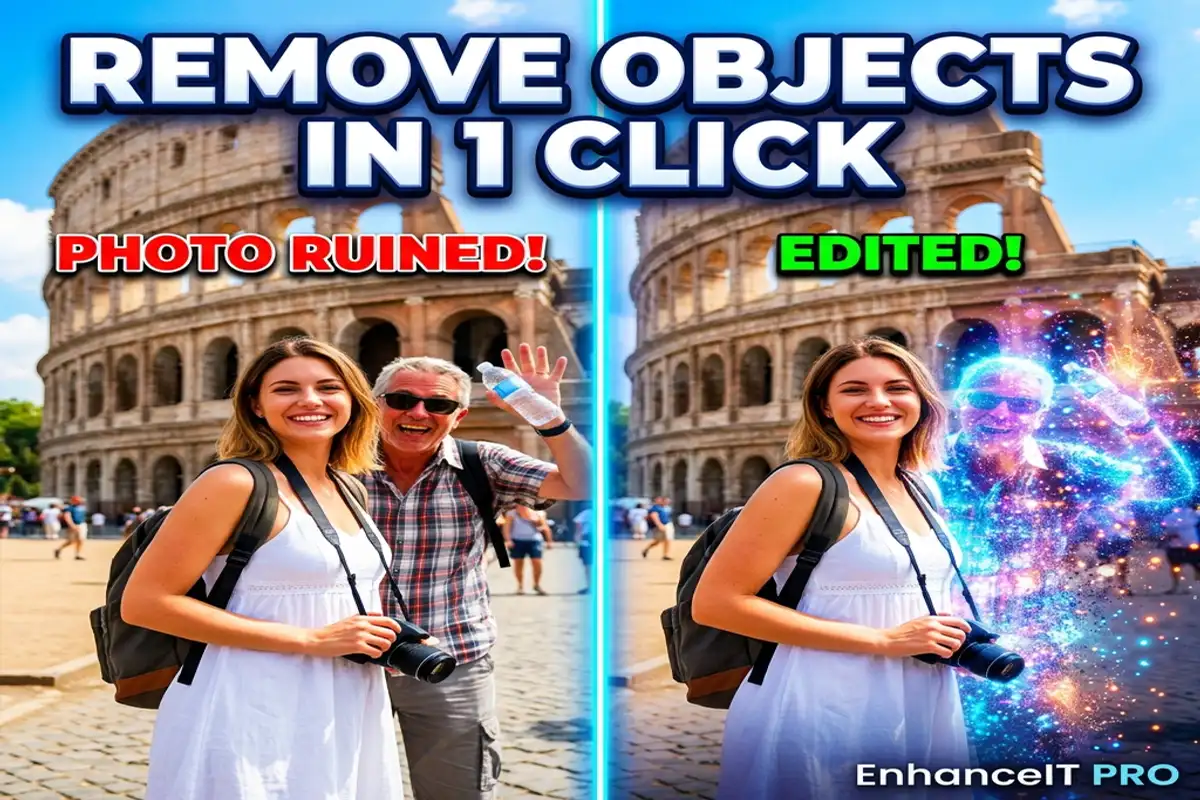

We have all experienced the intense frustration of taking what looks like the perfect photograph, only to realize a stranger is walking through the background.
In the past, fixing these ruined photos required expensive software like Photoshop and hours of tedious manual cloning work.
Today, artificial intelligence can erase those exact distractions completely in less than three seconds.
Whether you are removing strangers or restoring water-damaged photos, you do not need any graphic design experience to get flawless, professional results.
Let me walk you through exactly how to remove any unwanted object from your photos using the incredibly powerful EnhanceIT PRO platform.
Understanding AI object removal
Traditional editing tools simply tried to copy and paste nearby pixels over the object you wanted to hide.
This older method almost always resulted in blurry, smudged textures that looked highly unnatural.
Modern AI erasers use deep learning algorithms to literally understand the context of the entire scene.
When you highlight an object to remove, the AI uses capabilities similar to the best free AI image generators to literally create completely new, original pixels that realistically fill the empty gap.
In my experience testing our internal tools, the EnhanceIT PRO AI can flawlessly recreate complex backgrounds like brick walls, ocean waves, or busy city streets.
Using EnhanceIT PRO
Instead of downloading clunky smartphone applications or paying expensive monthly subscriptions, you can do this entirely for free on our website.
The EnhanceIT PRO Remove Unwanted Objects tool is specifically designed to run entirely in your web browser at lightning speed.
You simply drag and drop your ruined photo directly onto our homepage upload area to get started immediately.

Highlighting the distraction
The actual process on our platform is incredibly simple and highly intuitive.
Once your image is loaded into the EnhanceIT PRO editor, grab the smart eraser brush tool.
Carefully paint over the exact person, power line, or trash can you want to instantly delete.
You do not need to be surgically precise with your highlighting.
Just make sure you cover the entire object, including any shadows or reflections the object is casting on the ground.
Letting the AI work
Once you finish highlighting the distraction, simply click the remove button and wait a few seconds.
Our proprietary EnhanceIT PRO artificial intelligence will instantly analyze the surrounding environment, calculate the exact lighting conditions, and delete the object entirely.
The background reconstruction happens seamlessly in the cloud.
Last time I tested this on a crowded beach photo, our AI perfectly reconstructed the complex sand and water textures behind a massive photobomber on the very first try.
Final touch-ups and exporting
Sometimes the AI will successfully remove a massive object but leave behind a tiny, weird digital artifact or a slightly blurred edge.
You can easily fix this right inside the EnhanceIT PRO interface by zooming in closely and doing a tiny second pass with the eraser brush.
Our AI engine is incredibly good at cleaning up its own minor mistakes.
Once the background looks completely natural, simply click the export button to save your highly improved, flawless high-resolution photograph to your computer!